Tutorial
Transfer files with AirDisk over local Wi-Fi
Use the address shown in AirDisk to move files through a computer browser—without a cable or desktop companion app.
1. Requirements
- AirDisk installed from the iPhone and iPad App Store or Google Play.
- A computer with a modern browser; no AirDisk desktop software is required.
- A trusted Wi-Fi network that allows devices to communicate with each other.
- Local-network and photo access granted to AirDisk when needed.
2. Connect the phone and computer to the same Wi-Fi
Confirm the Wi-Fi network name on both devices. Avoid a guest network if it blocks device-to-device traffic. For sensitive files, prefer your home, office, or personal hotspot over public Wi-Fi.
3. Open WiFi File Transfer in AirDisk
- Open AirDisk on the phone or tablet.
- Tap Sync.
- Choose WiFi File Transfer.
- Keep AirDisk open while the computer is connected.
4. Enter the displayed address in the computer browser
AirDisk displays a local address similar to http://192.168.x.x:8080. Type the complete address into the browser address bar. This address normally works only while the transfer screen is active and both devices are on the same network.
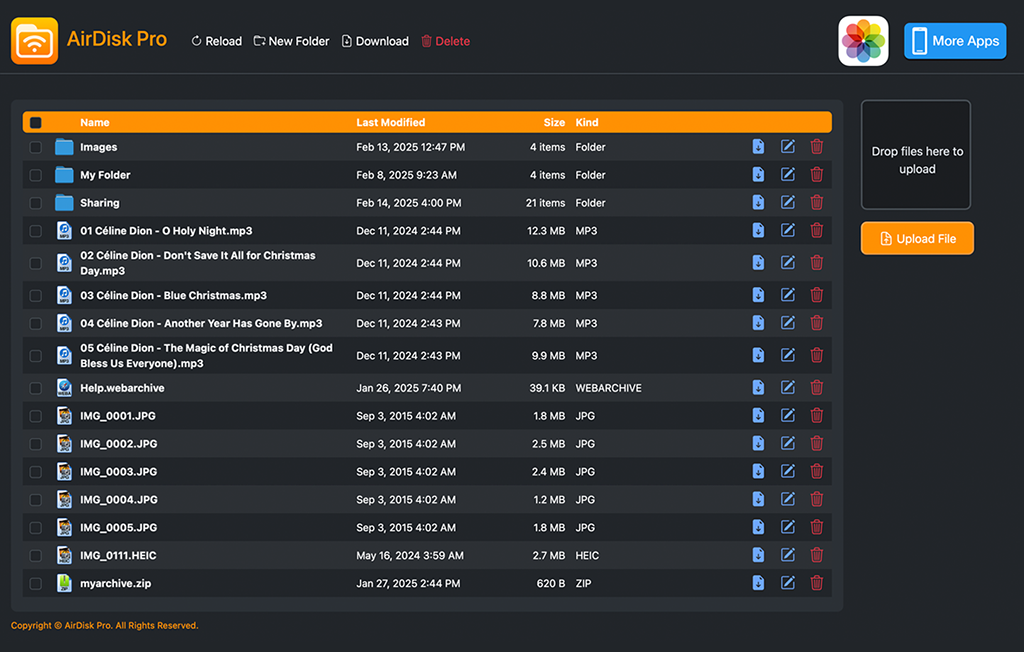
5. Upload or download files
Computer to AirDisk
Open the destination folder, then choose Upload File or drop files into the upload area. Keep both devices awake until the upload finishes.
AirDisk to computer
Browse to the file or folder, select it, and choose Download. Open a few transferred files before removing originals from the phone.
6. Troubleshooting
- Check that the address matches exactly and still appears in AirDisk.
- Keep the app in the foreground and prevent the phone from sleeping.
- Temporarily disconnect a VPN if it blocks access to local devices.
- Try a trusted personal hotspot if a guest or public network isolates devices.
- For a large library, transfer smaller batches and verify each batch.
See the connection troubleshooting checklist or browse the AirDisk Help Center for additional checks.
7. Security and local-network notes
This workflow sends files across the local network instead of uploading them to a cloud service first. Other devices may share that network, so use a network you trust, stop WiFi File Transfer when finished, and do not share the displayed address. Cloud, FTP, or WebDAV connections are separate optional workflows with their own provider and server settings.