Best Practices for Backing Up Phone Photos to a Computer
Build a simple backup routine for phone photos and videos using local WiFi transfer, clear folder names, and repeatable batches.
A good photo backup is not a dramatic rescue plan. It is a small routine you can repeat before your storage gets stressful.
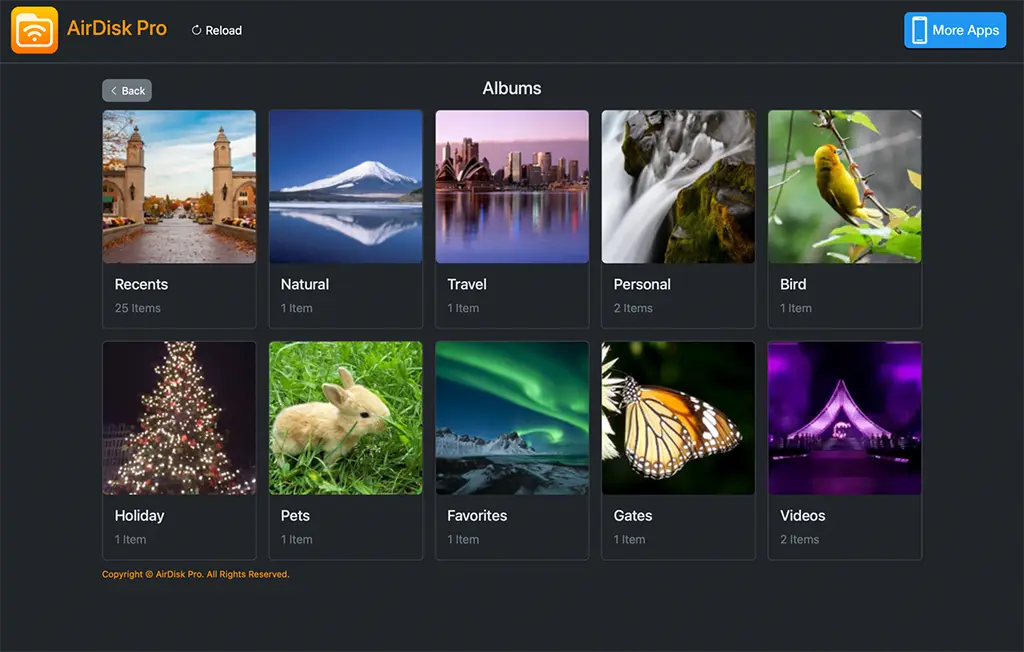
Phone cameras make it easy to collect thousands of photos and videos. The hard part is keeping them safe and organized before storage fills up or a device gets replaced. A useful backup routine does not need to be complicated. It needs to be easy enough that you will actually do it.
AirDisk Pro helps by giving your computer browser access to your phone over local WiFi. You can move photo and video batches without a cable and without waiting for a cloud upload to finish first. That makes it easier to create a habit: connect, transfer, verify, organize, and repeat.
Start with a folder system
Before transferring, decide where photos should land on your computer. A simple folder structure is better than a clever one you will forget. Many people use folders by year and month, such as Photos/2026/06-June. If you shoot for projects, use project folders like Client-Name/Event-Date or Travel/2026-Kuala-Lumpur.
The goal is to make future search easier. You should be able to open the backup drive six months from now and understand what each folder contains. Avoid dumping everything into one massive folder called Phone Backup unless you plan to sort it immediately.
Transfer in batches
Large photo libraries can be heavy, especially when they include 4K video. Instead of moving everything at once, transfer in batches by date range, album, event, or media type. Batches are easier to monitor. If the network drops, you only repeat one section instead of wondering where a giant transfer stopped.
Keep AirDisk Pro open during the transfer. If the phone locks or the app moves to the background, the operating system may pause network activity. For big backups, plug the phone into power and keep the computer awake too.
Keep originals when possible
For a real backup, original quality matters. Compressed images are fine for sharing, but they are not ideal as your long-term copy. Originals preserve more detail for editing, printing, cropping, and future screens with better resolution.
After transfer, open a few files on the computer. Check both photos and videos. If your batch includes slow motion, Live Photos, RAW images, or edited clips, verify that the formats you care about arrived in a usable way. This small check prevents the worst kind of backup: one you only learn is incomplete when you need it.
Use a two-copy habit
A computer copy is a strong first step, but a single copy is still fragile. Drives fail, laptops get lost, and folders can be accidentally deleted. After moving photos to your computer, consider a second copy on an external drive, network drive, or trusted cloud account.
Think of the computer as your working library and the second copy as your safety copy. You do not need to over-engineer it. Even a monthly copy to an external drive is better than letting every important memory live only on one phone.
Free phone storage carefully
Once the backup is verified, you can decide what to remove from the phone. Be patient here. Open the files on the computer first, confirm the folder count looks right, and make sure videos play. If the photos are important, create the second copy before deleting them from the phone.
Some cloud photo libraries also have their own sync behavior. If your phone is connected to a cloud photo service, understand whether deleting locally also deletes from the cloud. When in doubt, test with a few unimportant files before cleaning up a large library.
A repeatable routine
A practical monthly routine might look like this: create a folder for the month, connect both devices to the same WiFi, open the AirDisk Pro browser address, transfer photos and videos in batches, verify the files, copy the folder to a second backup location, then clean up phone storage only after everything checks out.
This routine turns photo backup into maintenance instead of panic. The more often you do it, the smaller each session becomes. That is the quiet win: less clutter on your phone, more confidence that your media is safe, and fewer evenings spent wrestling with storage warnings.
Frequently asked questions
Should I transfer original photos or compressed versions?+
For backup, keep originals whenever possible. Originals preserve the most detail and give you better options later for editing, printing, or archiving.
How often should I back up my phone photos?+
Weekly or monthly works for most people. Back up sooner after travel, events, client shoots, or any moment where losing the photos would hurt.
Can I delete photos from my phone after backup?+
Only after you verify the files open correctly on your computer and, ideally, after you have a second backup copy on another drive or trusted storage service.
Start Wireless Photo & File Transfer
Move photos, videos, folders, and documents between your phone and computer over local WiFi, then manage everything in one app.
Free to download. No account required.
Related articles
June 16, 2026
How Local WiFi Transfer Keeps Large Files Moving Quickly
Learn why direct local network transfer is often faster, more private, and easier than sending large files through cloud storage first.
June 14, 2026
Moving Documents Between Android, iPhone, Mac, and Windows
A practical guide to moving documents across phones with nearby device sharing, and between mobile and desktop with a browser-based workflow.
September 9, 2026
Why iPhone Videos Fail to Copy to a NAS
Diagnose iPhone-to-NAS video copy failures involving permissions, storage, Wi-Fi, background interruptions, incomplete files, and playback compatibility.