Moving Documents Between Android, iPhone, Mac, and Windows
A practical guide to moving documents across phones with nearby device sharing, and between mobile and desktop with a browser-based workflow.
Use the right bridge for the destination: nearby sharing for phones, and a browser link when Mac or Windows joins the transfer.
Moving a document from one device to another should be boring. In reality, it often becomes a small compatibility puzzle. A PDF is on an Android phone, the presentation is on a Mac, the spreadsheet needs to land on a Windows laptop, and the cable you have is the wrong one. Messaging apps compress files or bury them in chat history. Cloud drives work, but only if both devices are signed in, synced, and online.
AirDisk Pro uses two practical paths depending on what you are sharing with. Between iOS and Android devices, nearby device sharing keeps phone-to-phone transfers direct and simple. When Mac or Windows is part of the workflow, AirDisk Pro uses a local browser address so the computer can upload, download, or manage files without installing a matching desktop app.
Pick the right transfer path
For phone-to-phone movement, nearby device sharing is the natural path. It is built for the moment when an iPhone and Android phone are close to each other and a file needs to move quickly without passing through chat apps or shared cloud folders.
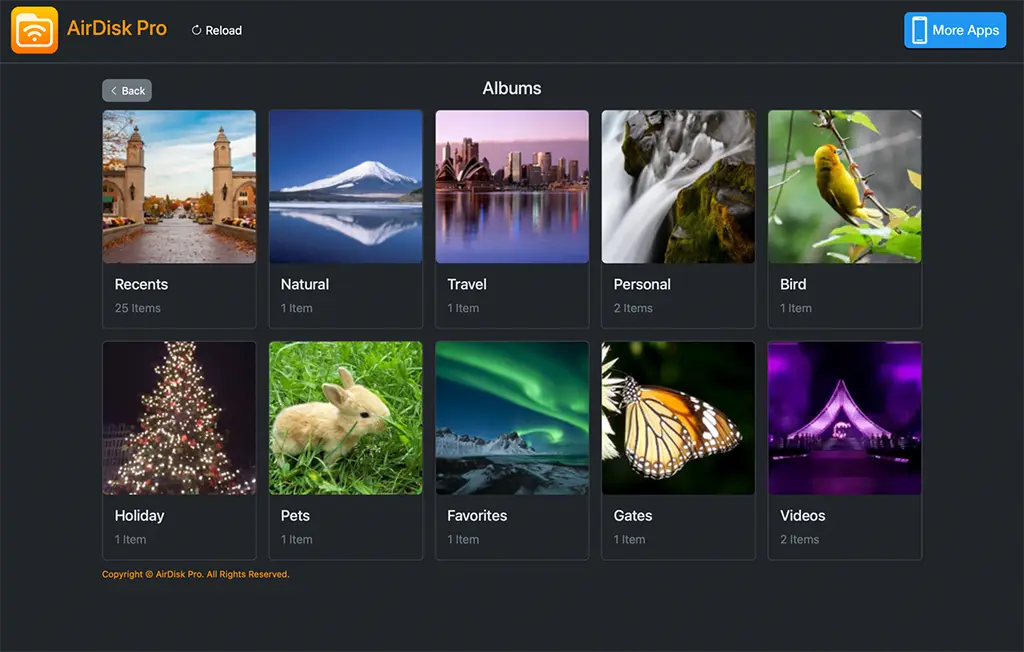
For Mac and Windows, the browser is the bridge. AirDisk Pro runs on the mobile device, shows a local address, and the computer opens that address on the same network. This is especially helpful when you are using someone else's computer, a temporary workstation, or a device where you cannot install software.
Keep file names understandable
Cross-platform transfer is easier when files are named clearly. Before sending a batch, rename vague files like Document.pdf or IMG_4821 when you can. Add dates, client names, version numbers, or project names. A file named invoice-2026-06-final.pdf is much easier to understand after it lands on another phone or computer.
For project folders, keep related files together. If a presentation depends on images, PDFs, or spreadsheets, move the whole folder instead of trying to remember each dependency. A tidy folder travels better across platforms than scattered files.
Watch for format differences
Most common formats move cleanly: PDFs, images, videos, archives, text files, spreadsheets, and presentations. The file may transfer perfectly even if the receiving device does not have the right app to preview it. In that case, install or open it with a compatible application after the transfer finishes.
If you are sending editable office documents, check the result before a deadline. Fonts, embedded media, macros, or platform-specific features can behave differently across apps. The transfer can move the file, but the receiving software still controls how the document opens.
Choose the right network
For Mac and Windows browser sharing, both devices need to be on the same local network. A home WiFi network, trusted office network, or personal hotspot is usually best. Public networks and guest networks can block device-to-device communication, which prevents the browser from reaching the AirDisk Pro address.
If the browser page does not load, start with basics: confirm the address is typed exactly as shown, keep AirDisk Pro open, check local network permission on the phone, and make sure the computer and mobile device are on the same WiFi. If a VPN is active, turn it off temporarily and try again.
Use archives for complex folders
When a folder contains many small files, creating an archive can make the move easier. Archives keep structure intact and reduce the chance of missing a small dependency. They are also useful when Mac or Windows browser behavior handles folder upload differently.
After the archive arrives, extract it on the receiving device and confirm the folder structure looks right. This is a good habit for design files, website assets, school assignments, exported reports, and client deliverables.
A simple cross-platform routine
For iOS and Android, start with nearby device sharing when the destination is another phone or tablet. Choose the file, select the nearby device, and keep both devices close until the transfer finishes.
For Mac or Windows, start AirDisk Pro on the mobile device, open the local browser address on the computer, and choose the direction of transfer. Upload files to the phone when you need them mobile. Download files from the phone when you need them on a desktop. For bigger projects, move folders or archives, then verify the result before closing the session.
The best part of this workflow is that it does not ask every device to become the same kind of device. Android can stay Android, iPhone can stay iPhone, Mac can stay Mac, and Windows can stay Windows. AirDisk Pro uses nearby sharing where it fits and the browser where desktop compatibility matters most.
Frequently asked questions
Do I need the same operating system on both devices?+
No. AirDisk Pro supports nearby device sharing between iOS and Android. When sharing with Mac or Windows, the computer uses a modern browser on the same local network.
Can I move folders as well as files?+
Yes. AirDisk Pro is designed for moving organized groups of files, not only single documents. Browser folder support can vary when Mac or Windows is part of the transfer.
What should I do if a work network blocks the connection?+
Try a trusted personal hotspot or ask the network administrator whether local device communication is blocked. Many office guest networks isolate devices by design.
Start Wireless Photo & File Transfer
Move photos, videos, folders, and documents between your phone and computer over local WiFi, then manage everything in one app.
Free to download. No account required.
Related articles
June 16, 2026
How Local WiFi Transfer Keeps Large Files Moving Quickly
Learn why direct local network transfer is often faster, more private, and easier than sending large files through cloud storage first.
June 15, 2026
Best Practices for Backing Up Phone Photos to a Computer
Build a simple backup routine for phone photos and videos using local WiFi transfer, clear folder names, and repeatable batches.
September 9, 2026
Why iPhone Videos Fail to Copy to a NAS
Diagnose iPhone-to-NAS video copy failures involving permissions, storage, Wi-Fi, background interruptions, incomplete files, and playback compatibility.