How Local WiFi Transfer Keeps Large Files Moving Quickly
Learn why direct local network transfer is often faster, more private, and easier than sending large files through cloud storage first.
The fastest path for a large file is usually the shortest one: from one device to another on the network you already trust.
When a video, folder, or photo library is too large for messaging apps, many people reach for cloud storage by habit. It works, but it is not always the most direct route. A cloud workflow usually has two jobs: upload the file from one device to a remote server, then download it from that server to the second device. That can be useful when the devices are far apart. When both devices are in the same room, it can be unnecessary work.
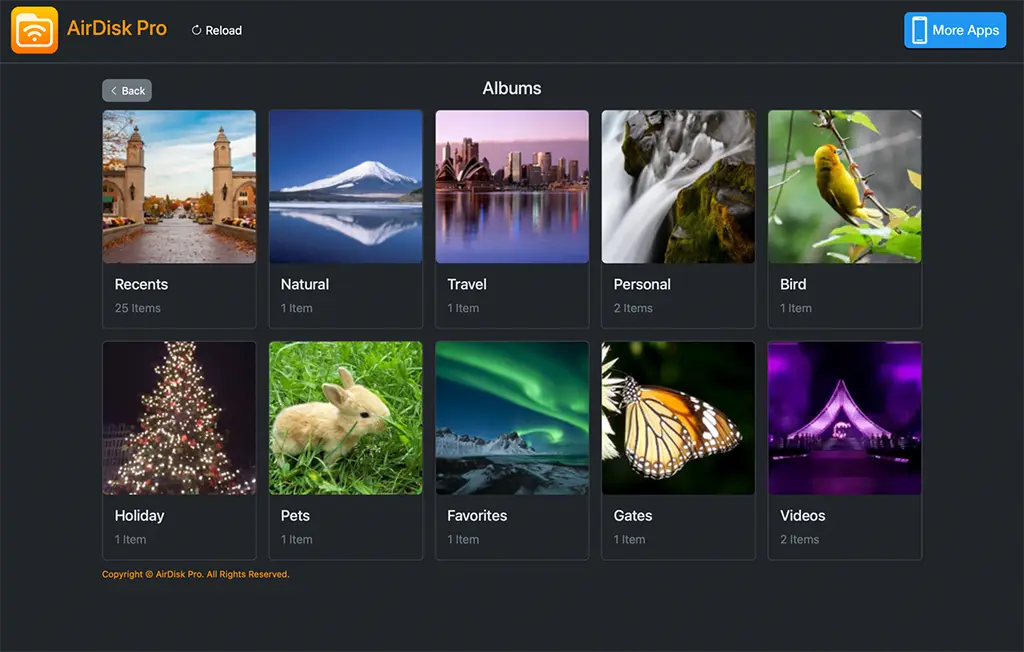
Local WiFi transfer keeps the job closer to home. AirDisk Pro turns your phone into a temporary local transfer point. Your computer opens a browser address shown by the app, and the file moves across your own WiFi network. There is no cable to find, no desktop software to install, and no waiting for a remote upload before the receiving device can start.
Why the route matters
The route a file takes affects how quickly it arrives. If you upload a 4 GB video to a cloud account, the file leaves your home or office network, travels to the provider, and then comes back down to the computer that needs it. Your upload speed is often much slower than your download speed, so the first half of the trip can become the bottleneck.
With local WiFi, the path is shorter. The phone and computer talk to each other through the router or access point. The transfer speed depends mostly on local signal quality, device performance, and network congestion. For everyday files like documents, screenshots, short clips, and archives, this can feel instant. For large videos or project folders, it removes the extra waiting that comes from cloud synchronization.
When local transfer is the better choice
Local transfer is ideal when both devices are nearby. It is especially helpful for moving phone videos to a laptop before editing, copying PDF packs to a tablet before a meeting, or sending a folder from a computer to a phone before travel. It is also useful in places where internet access is limited but a local network exists, such as a studio, classroom, hotel room, or private hotspot.
It can also make file handling feel less fragmented. Instead of checking whether a file finished uploading, whether another device synced, and whether storage quota is available, you use one browser session for the task in front of you.
How to get the best speed
Start with signal quality. Keep both devices close to the router, or use a strong personal hotspot if that is the network you trust. Avoid guest WiFi if possible because many guest networks deliberately block devices from discovering or reaching each other.
Keep AirDisk Pro open while large transfers run. Mobile operating systems try to save battery by pausing background network work, so a locked screen or backgrounded app can interrupt a long upload. If you are moving a large folder, transfer in batches. Smaller batches make progress easier to read and easier to retry if a network hiccup happens.
Also check for network tools that change the path. VPNs, strict firewalls, and privacy relay features can interfere with local browser access. If the browser cannot connect, temporarily turn those off for the transfer or use a simpler trusted network.
Privacy advantages
Local transfer is not only about speed. It is also about keeping the file path understandable. When you move a file directly between your own devices, you do not need to place it in a shared cloud folder first. That can be useful for private documents, client media, family photos, and unfinished work that does not need to live online.
The best habit is simple: start the AirDisk Pro transfer server when you need it, complete the transfer, then turn it off. That keeps access intentional. Use trusted networks for sensitive files, and avoid public WiFi when you cannot tell who else is connected.
A practical workflow
For a large transfer, open AirDisk Pro, start the local transfer server, and copy the browser address into your computer. Upload or download the files you need, then confirm that they opened correctly on the receiving device. If you are moving a large set, work in batches by folder, date, or project.
This approach gives you a repeatable routine: same network, browser address, transfer, verify, stop server. Once it becomes familiar, it is often faster than searching for a cable or waiting for a cloud sync spinner to finish.
Frequently asked questions
Do local WiFi transfers need the internet?+
No. Your devices need to be on the same local network, but the transfer itself does not need an internet connection.
Why are local transfers faster than cloud uploads?+
Cloud workflows upload to a remote server first and then download again. Local WiFi transfers keep the file inside your network, which removes that extra round trip.
What slows down a local transfer?+
Weak WiFi signal, crowded public networks, VPNs, firewalls, guest network isolation, and devices going to sleep can all reduce speed or interrupt the session.
Start Wireless Photo & File Transfer
Move photos, videos, folders, and documents between your phone and computer over local WiFi, then manage everything in one app.
Free to download. No account required.
Related articles
June 15, 2026
Best Practices for Backing Up Phone Photos to a Computer
Build a simple backup routine for phone photos and videos using local WiFi transfer, clear folder names, and repeatable batches.
June 14, 2026
Moving Documents Between Android, iPhone, Mac, and Windows
A practical guide to moving documents across phones with nearby device sharing, and between mobile and desktop with a browser-based workflow.
September 9, 2026
Why iPhone Videos Fail to Copy to a NAS
Diagnose iPhone-to-NAS video copy failures involving permissions, storage, Wi-Fi, background interruptions, incomplete files, and playback compatibility.